Export Invoices
The Export Invoice function allows you to export your billing information to a file that can be sent to the Real Estate Tax Services. This function can be used to export information on a specific warrant, usually created at time of billing, or to export your unpaid invoice amounts for all warrants.
 Understanding The Process
To Export Invoices, choose Utilities | Real Estate Services | Export Invoices. The Export Real Estate Services Data dialog box displays.
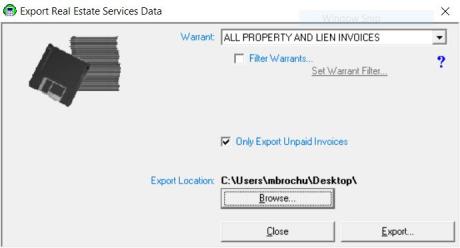
The Warrant drop down box allows you to select the warrant you wish to export. If you select ALL PROPERTY AND LIEN INVOICES, you will only be able to import payment back from the file if the warrants all have the same due date. The ALL PROPERTY AND LIEN INVOICES selection is commonly used by Real Estate Services to gather information on all your unpaid Invoices.
The Filter Warrants check box will enable the Set Warrant Filter link allowing you the option of selecting individual warrants that you want to include in the file.
The system defaults to Only Export Unpaid Invoices by automatically putting a check in the check box. If you want to export all Invoices, click in the check box to deselect.
The Export Location tells the system where you want the file to be saved. Select Browse to locate the destination. The system defaults to the “a” drive, as many of the services in the past have sent a floppy disk. However, more of the Tax Services now want the file through email, so you will need to save the file to a convenient location for attachment in an email. We recommend saving the file to your desktop. Once you have completed your selections, click Export. The following message box displays:
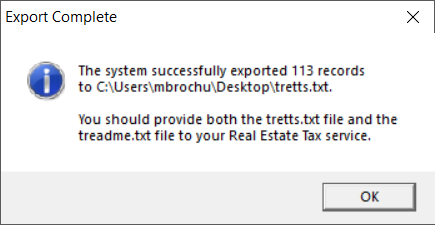
The export creates two files. The tretts.txt file contains the billing information (the amounts due for each billl) and the treadme.txt contains documentation on reading the file for the Real Estate Tax Services. Note: You must email, or send, both files.
Show Me How To Do It
This process should be used as a guideline, and not as a replacement for understanding the process.
-
Utilities | Real Estate Services | Export Invoices
-
Select the Warrant(s) from the dropdown list. NOTE: If you are in the process of sending your Delinquent Notices, leave as "ALL PROPERTY AND LIEN INVOICES"
-
Keep the "Only Export Unpaid Invoices" box checked.
-
Select Browse, choose Desktop for the location of the files, and click OK.
-
Select Export.
-
If you selected more than one warrant from the dropdown box, a dialog box displays asking you to confirm that you are exporting more than one warrant.
- Click No to make changes.
- Click Yes to continue.
-
-
After selecting Yes, both the treadme and tretts files will be exported to your desktop.
-
Both files need to be emailed to the Real Estate Service companies.